File Organization
Folders keep document sets structured inside the workbook. You can add folders and subfolders, rename them, move them, and place imported files into the correct branch so large document collections stay workable.
File Organization in File Manager (Example)
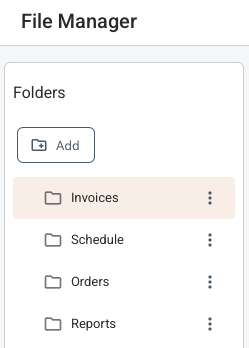
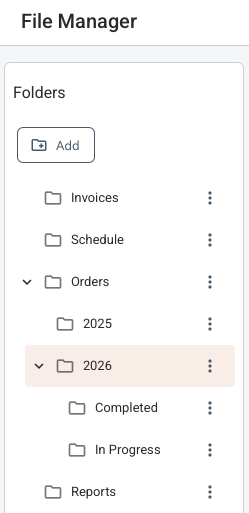
Folder Tree
Folders can be divided into subfolders.
How It Works
- Use Add folder in the folder toolbar to create a top-level folder or a subfolder under the current selection.

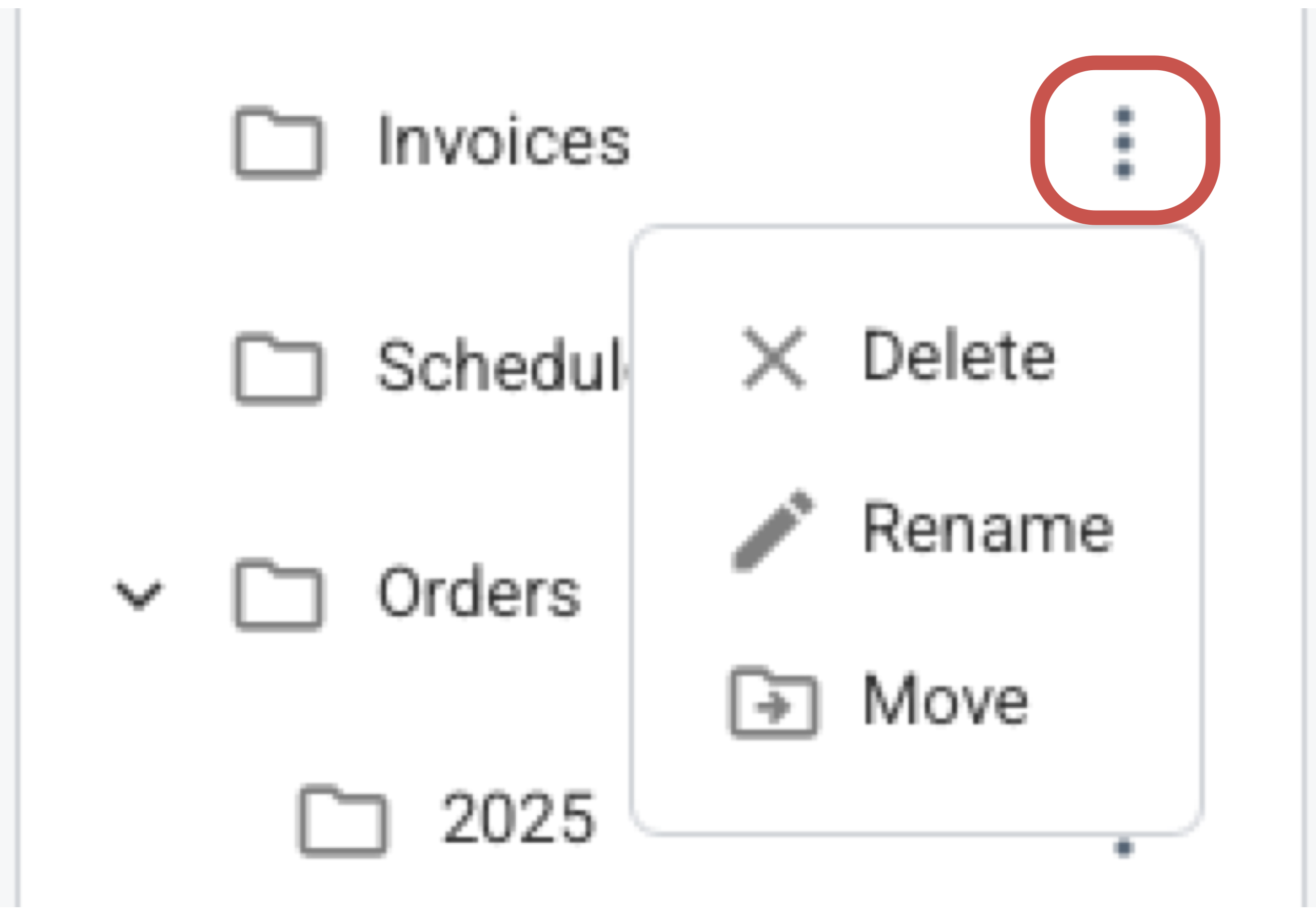
- Use the folder action menu to rename, move, or delete a folder.
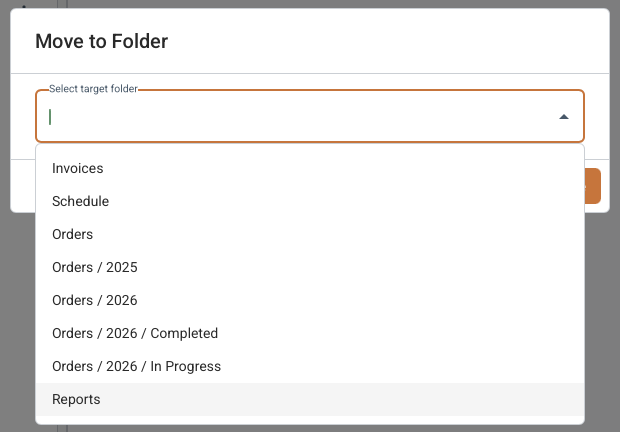
Use the 'Move Folder' dialogue box to select a destination folder or the top level for moving a folder to.
- Use the file action menu to move files into folders and keep projects, packages or review sets grouped together. Select the "Move" command from the file action menu to move a file to a folder.
What To Keep In Mind
- Deleting a folder also deletes any subfolders, files and annotations or comments stored within it.
- Folder selection filters the grid so you can focus on one document set at a time.