Files
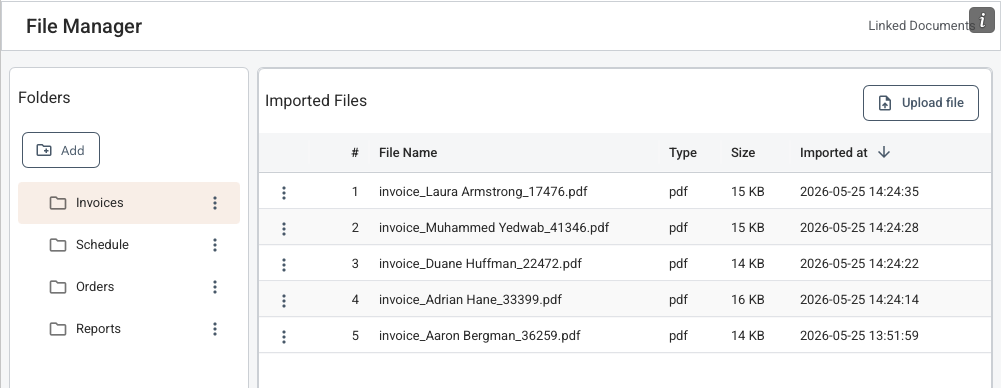
The File Manager is the operational hub for imported PDFs. It lists stored files and shows key metadata, such as the file's name, size and import date. It also gives you quick access to open, move and delete file actions. The File Manager also enables you to create and manage a folder structure within your workbook, allowing you to move files into folders based on your requirements and work even more efficiently with files and annotations.
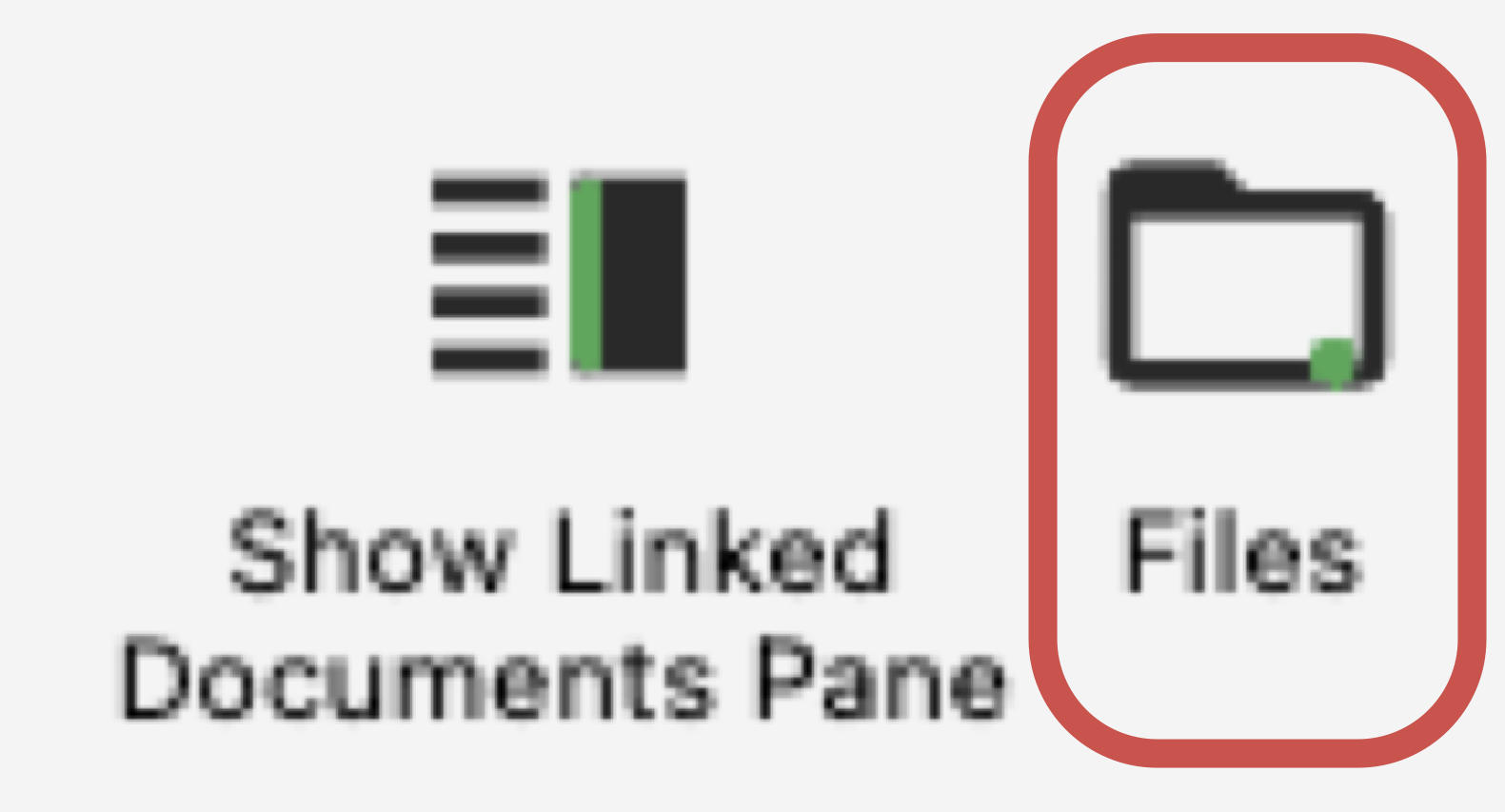
File Manager Ribbon Command
File Manager Compact View
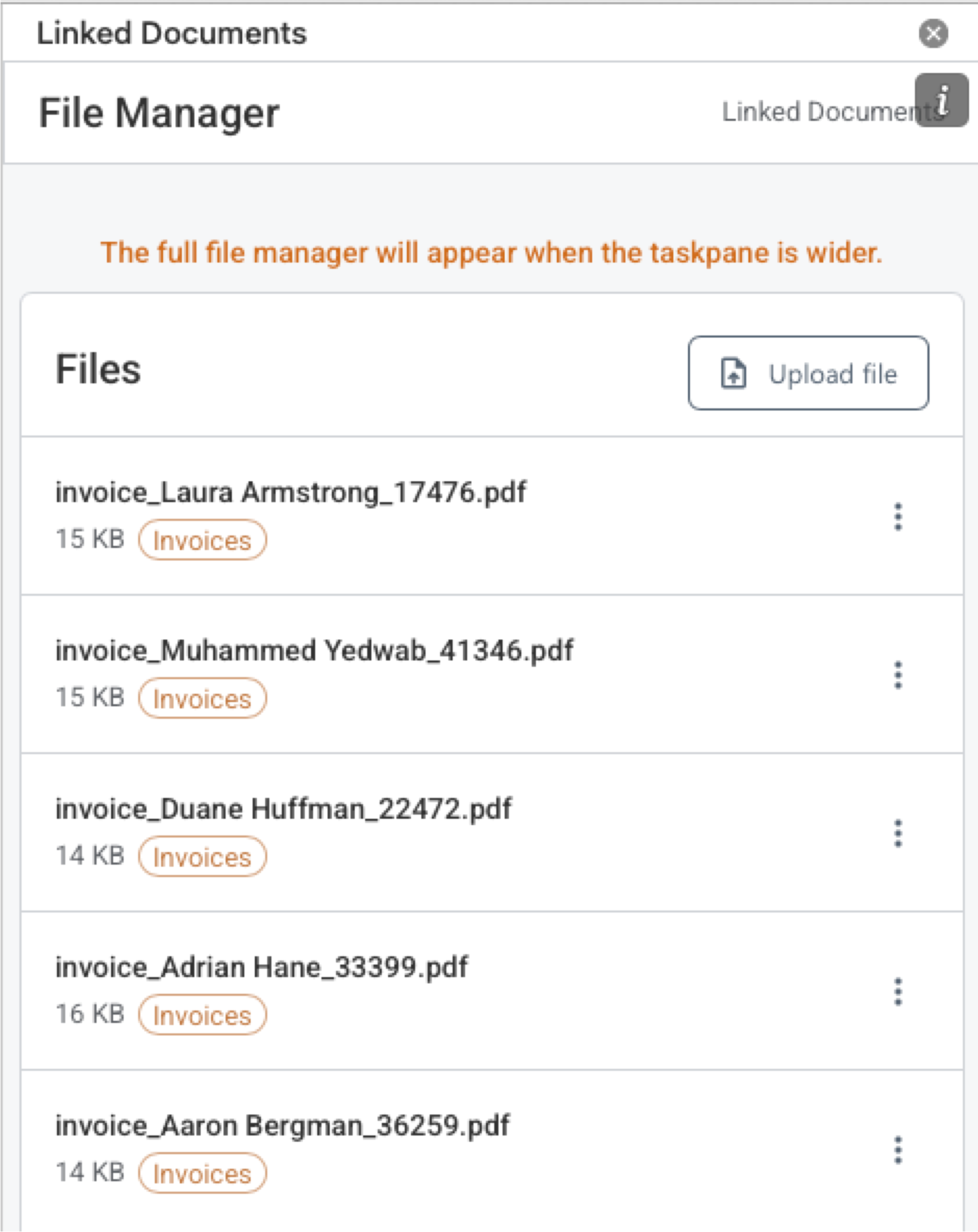
File Manager Full View
File Grid Footer
Use the controls at the bottom of the file grid to adjust the number of files displayed at once and to navigate through pages.

How It Works
- Open the File Manager from the pane, or allow it to open there by default when the app starts.
- Pull the left border of the side pane to switch from the Compact view to the Full view of the File Manager. The full view allows you to manage folders and see more file details that are not available in the compact view.
- Review the grid of imported PDFs and use folders to narrow down the list.
- To open a file in the viewer, move or delete it, click on its action menu.
What To Keep In Mind
- Files are embedded in the workbook rather than stored externally. All uploaded files are stored in the same Excel file.
- Deleting a file also removes any linked annotations and comments for that file.