PDF Viewer
The PDF Viewer is the main workspace for reviewing a document after you open it from the File Manager. It combines the page canvas, navigation controls, annotation tools, and reference commands so you can work against the source PDF while keeping Excel in context.
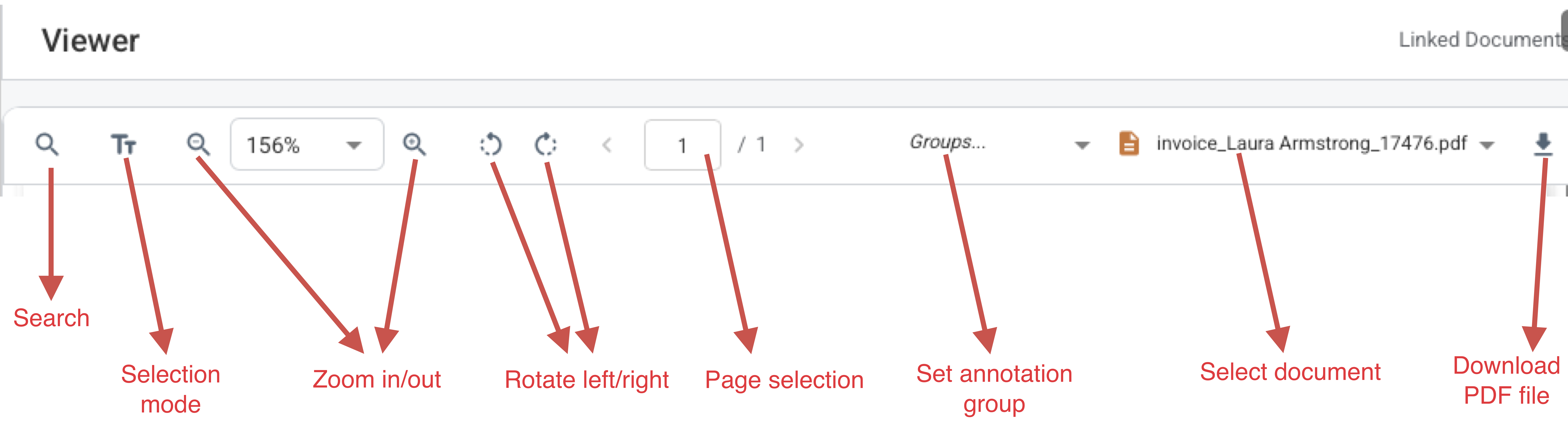
PDF Viewer Toolbar
How It Works
- Open a PDF from the File Manager by selecting 'Open in Viewer'.
- Use the viewer controls to move between pages, zoom in or out, rotate the pages and inspect the active selection or annotation.
- When a cell in a workbook linked to a text or table reference in a PDF document is selected, the viewer opens automatically. The referenced place is then navigated to and highlighted.
- Use the commands on the viewer toolbar to select an annotation group, which will then be applied to all subsequent annotations and references. You can also use the toolbar to change the viewed document.
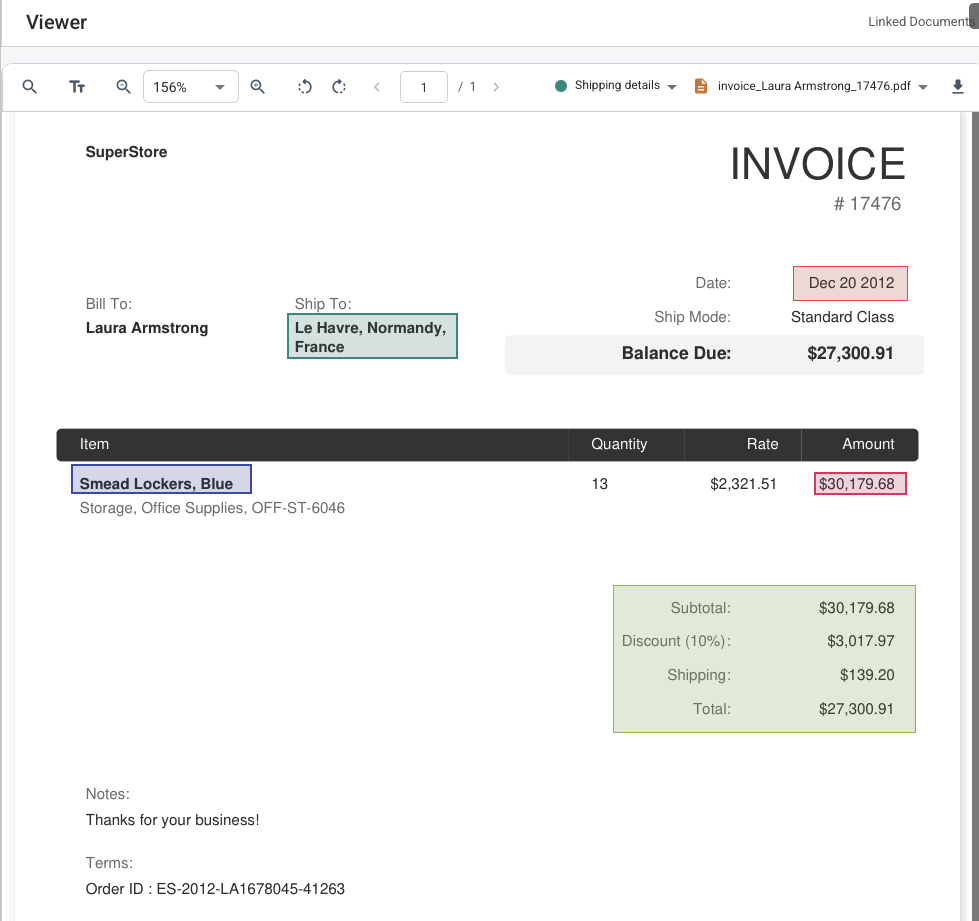
- Use the PDF viewer to draw markups, create references and extract tables. All markups are displayed in the viewer according to their group assignment and style (colour and background colour).
Viewer Composition
- The document canvas displays the active PDF page together with any saved annotations for that file.
- The viewer toolbar provides navigation and zoom controls together with the commands used during review and extraction.
- Annotations expose actions for the current selection, such as commenting, editing, deleting, or following a reference.
- The surrounding Excel window remains available so you can keep the target worksheet visible while working inside the PDF.
Marked up Document Example
What To Keep In Mind
- The viewer is the handoff point between file management and downstream workflows like annotation, extraction, and reference navigation.
- Available commands depend on the current context, including whether you selected text, drew a region, or clicked an existing annotation.