PDF Compare
PDF Compare lets you select two linked PDF files and review the differences between them side by side. Use it to check revised documents, such as updated invoices, specifications, contract drafts, or any pair of PDFs where the visual and text changes need to be inspected.
To run the comparison select the PDF Compare command in the Linked Documents ribbon. After the comparison runs, the results dialog shows the left and right documents together with a list of detected differences.
PDF Compare Ribbon Command
PDF Compare View
PDF Comparison Results
Visibility Control

Copy Results to Clipboard
Available at the bottom of the comparison results

Comparison View
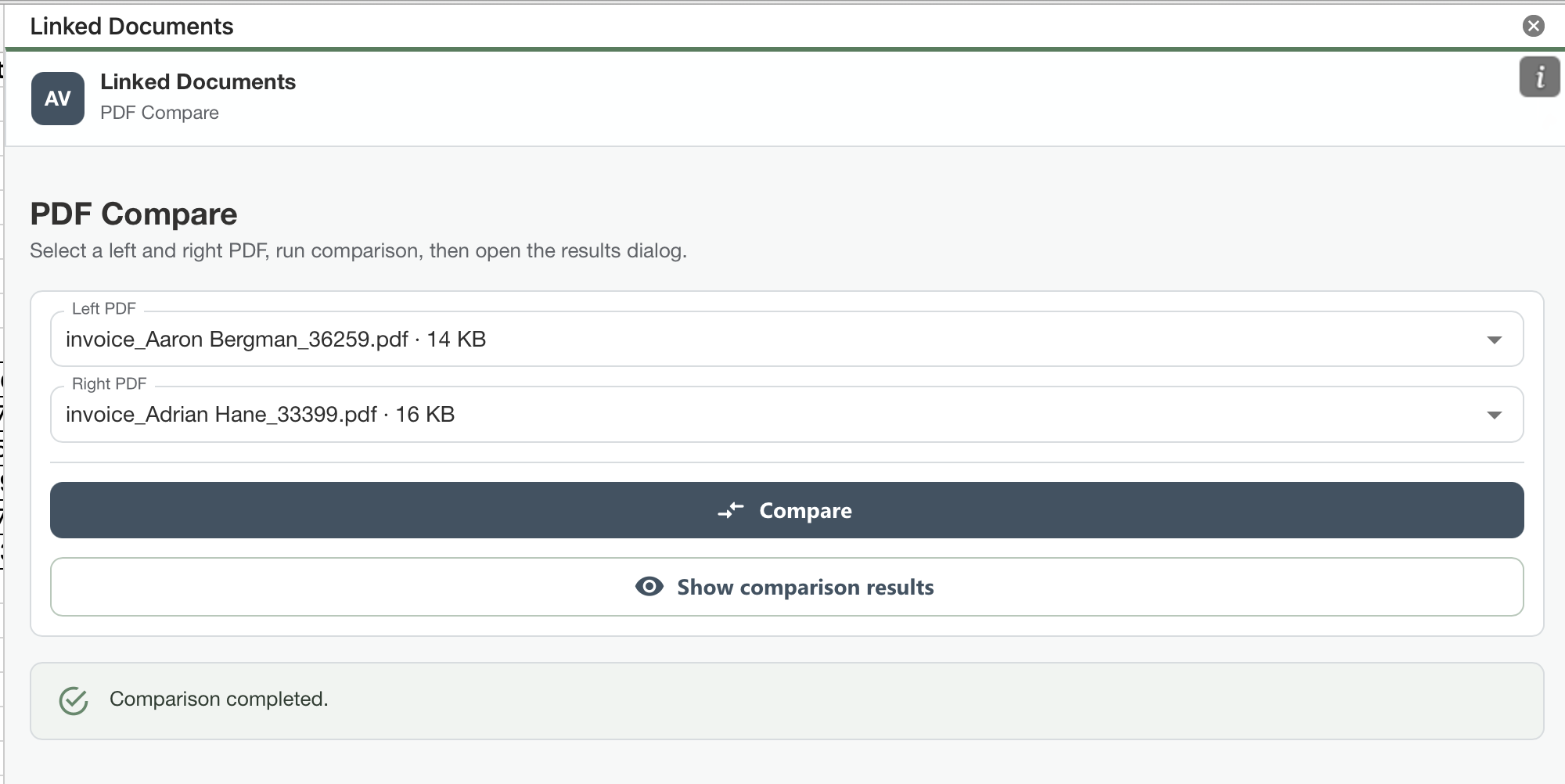
Use the PDF Compare view to choose the two files you want to compare.
- Left PDF: the first document in the comparison.
- Right PDF: the second document in the comparison.
- Compare command: runs the comparison for the selected files.
- Show comparison results: opens the results dialog after a comparison has been created.
The status message below the form confirms when the comparison workspace is ready or when another step is required.
Results Dialog
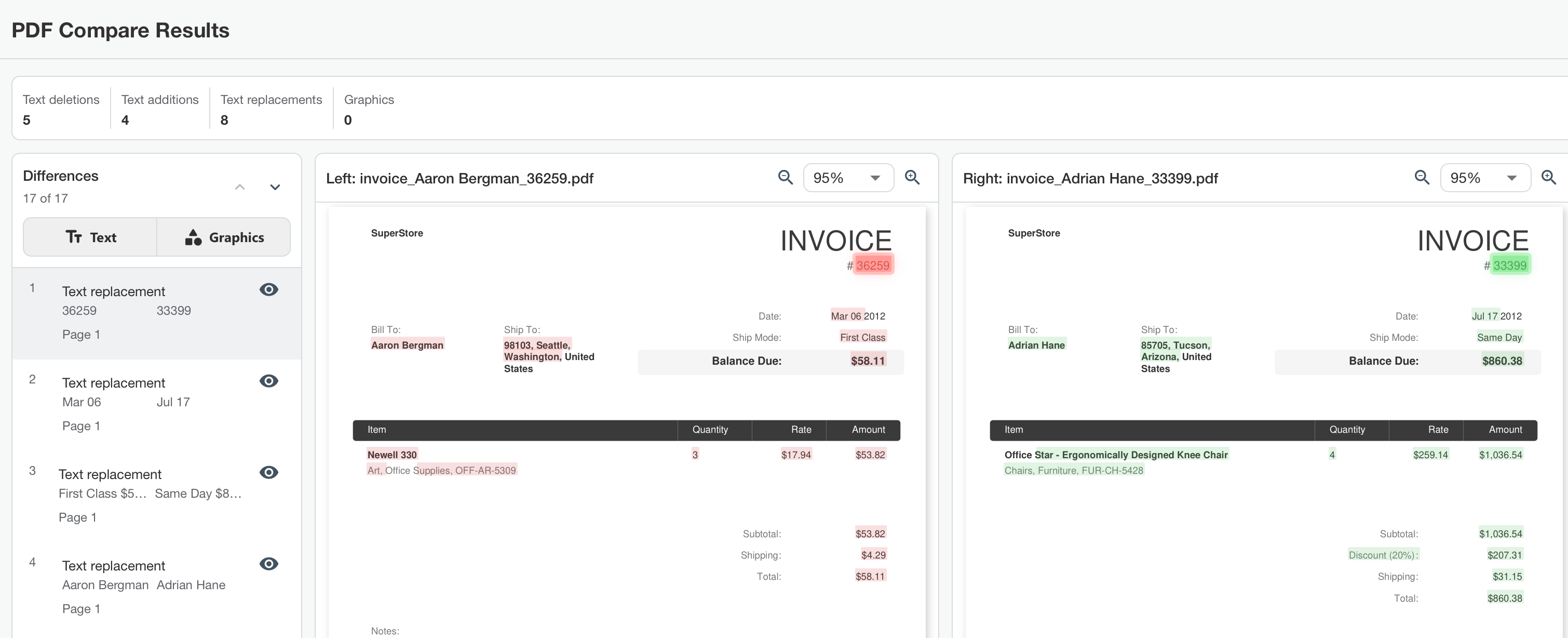
The PDF Compare Results dialog summarizes the detected changes and displays both PDFs side by side.
- Summary counts show the number of text deletions, text additions, text replacements, and graphics differences.
- The Differences panel lists each detected change with its type, changed value, page number, and preview action.
- Text and Graphics tabs let you switch between text-based and visual differences.
- The left and right document panes show the compared pages with highlighted differences.
- Zoom controls let you adjust each document pane while reviewing details.
- Copy to Clipboard copies the comparison results for reporting or follow-up.
How It Works
- Open the Linked Documents ribbon and choose PDF Compare.
- Select the Left PDF and Right PDF from the available linked PDF files.
- Click Compare to run the comparison.
- Click Show comparison results to open the results dialog.
- Select a difference in the list to inspect the highlighted change in both documents.
- Use Copy to Clipboard if you need to paste the comparison summary into another document or worksheet.
- Use the 'Visibility' command to show or hide each comparison result. In the PDF view, highlights of hidden items will be removed.
What To Keep In Mind
- PDF Compare works best when both files represent similar document layouts, such as two versions of the same invoice or agreement.
- Text differences can include deletions, additions, and replacements.
- Highlight colors help distinguish content from the left and right documents in the results view.
- The comparison results are a review aid. Check the highlighted PDF areas before making business decisions from the summary alone.