Annotation List
The Annotation List view gives you a workbook-level overview of saved annotations across linked documents. Use it to review markup without opening each PDF one by one, check which files and pages contain annotations, and copy the list for reporting or follow-up.
The list includes annotations created from drawing tools, text references, table references, and comments attached to document markups.
Annotation List Ribbon Command
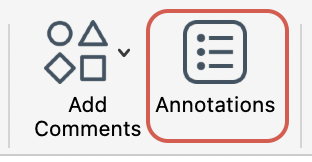
Annotation List
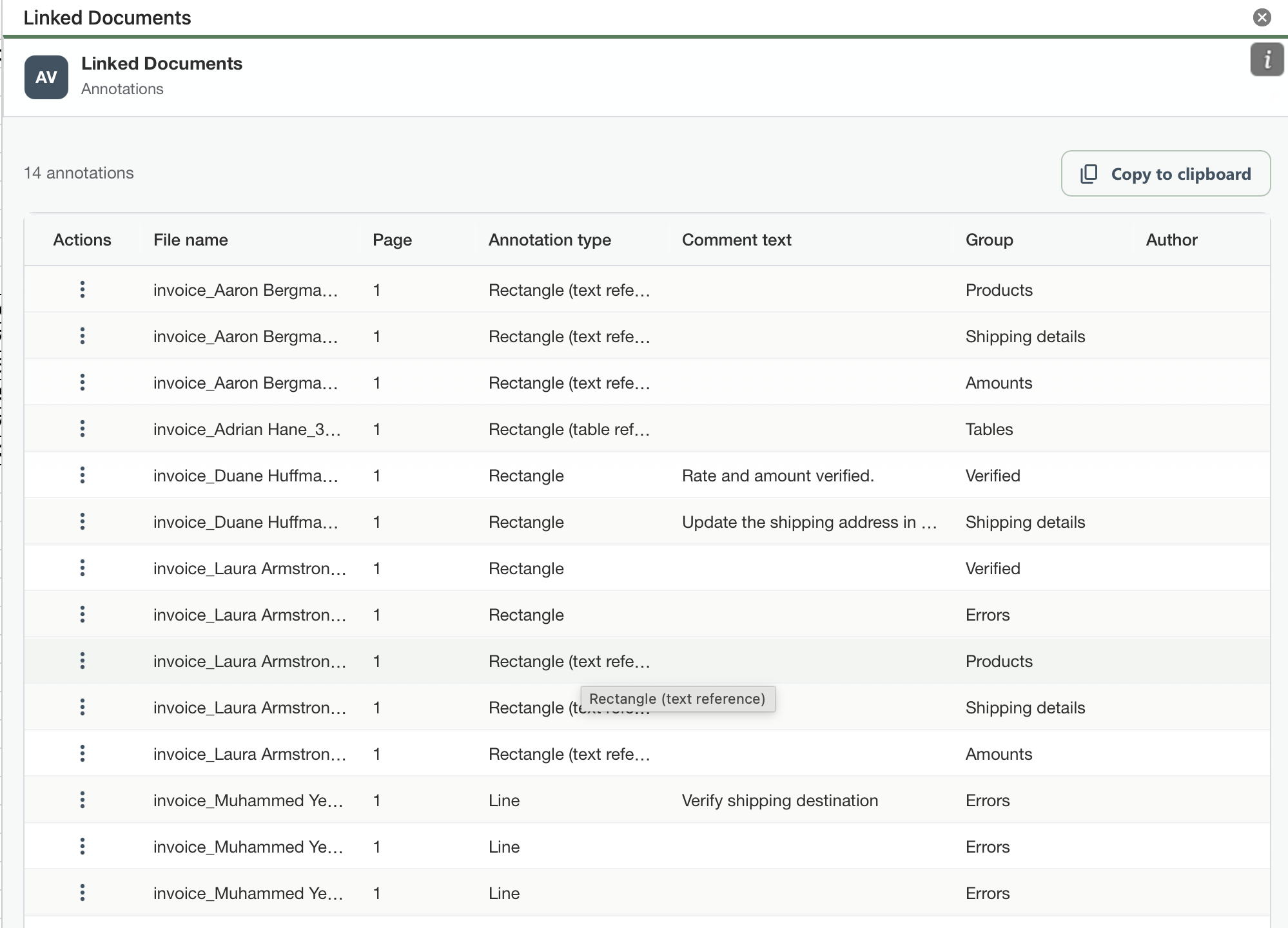
Annotation Details
The view shows the total number of annotations at the top and presents the annotations in a table.
- Actions: contain the "Jump to Annotation" command navigating to the annotation in the PDF Viewer.
- File name: shows the PDF file that contains the annotation.
- Page: shows the page number where the annotation is placed.
- Annotation type: identifies the markup type, such as Rectangle, Line, Rectangle (text reference), or Rectangle (table reference).
- Comment text: shows the note attached to the annotation, when one exists.
- Group: shows the annotation group assigned to the markup.
- Author: shows the author associated with the annotation, when available.
How It Works
- Open the Annotation List view from Linked Documents.
- Review the annotation count to confirm how many annotations are currently available.
- Use the table columns to identify the document, page, annotation type, comment text, group, and author.
- Select the "Jump to Annotation" command to navigate to the annotation in the PDF Viewer.
- Click 'Copy to clipboard' to copy the annotation list and, if required, paste it in the spreadsheet or ourside of Excel.
What To Keep In Mind
- The list is useful for audit reviews, issue tracking, and checking that each annotation has the expected group or comment.
- The list can be used for comment summary sheets to summarize document review sessions.
- To change or delete an annotation, use the related annotation or reference commands.