Add Comments
In the PDF viewer, comments are attached to annotation shapes, such as lines or rectangles. After drawing a line or rectangle or creating a text or table reference region, you can attach a comment text directly to the annotation to keep the context on the page.
You can adjust the comment location at any time by selecting and dragging the comment to the desired place in the document.
You can change the comment text by clicking the callout button that appears next to the annotation shape.
Add Text Comment to Annotation

Comment Editing Dialog
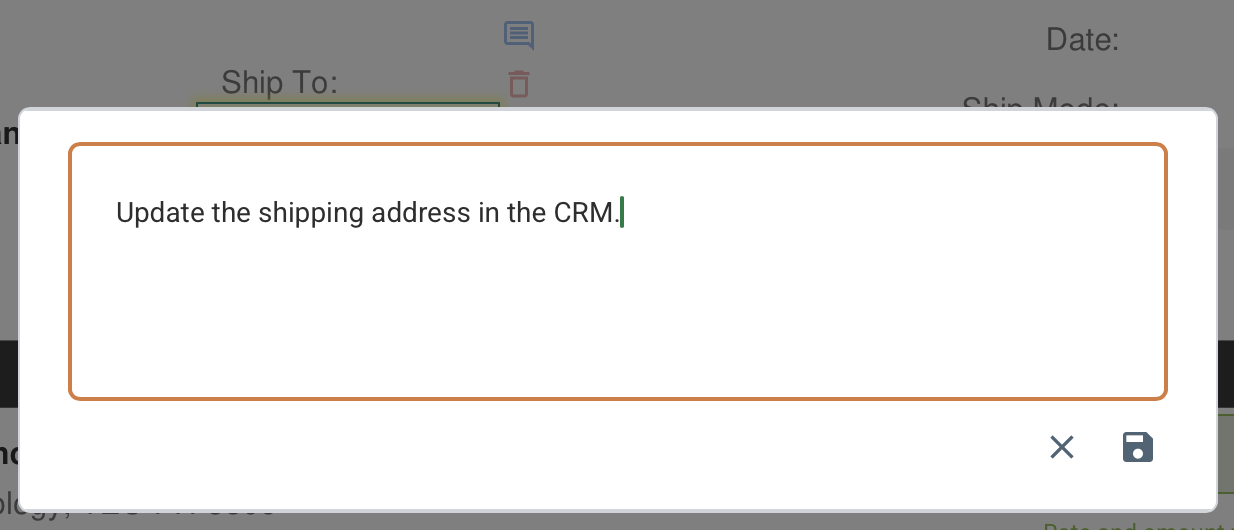
Comment Text Added to Annotatioin

How It Works
- Open a file in the PDF viewer, then create a new annotation shape or select an existing one.
- Click the comment button (the Callout icon) next to the annotation.
- Enter your note in the Comment Editing dialog box and save it so that the comment stays attached to the shape.
- Drag the comment to the desired location in the document, if required.
- To edit the comment, click the callout icon next to the annotation shape again and save the updated text.
What To Keep In Mind
- Comments are stored with the annotation rather than as loose worksheet notes.
- This works well for review markups, decisions, and follow-up instructions.
- The comment text will use the style set by the active annotation group. Otherwise, it will default to the standard border and fill colour.