Other Commenting Tools
In addition to line and rectangle annotations, the application includes other commenting tools for marking up the document directly. Use these tools when you need to highlight text, point to a specific clause, or draw attention to a region with a shape that better matches the review context.
These annotations work as visual comments on the PDF. They can help reviewers identify issues, questions, decisions, and follow-up items.
Available Tools
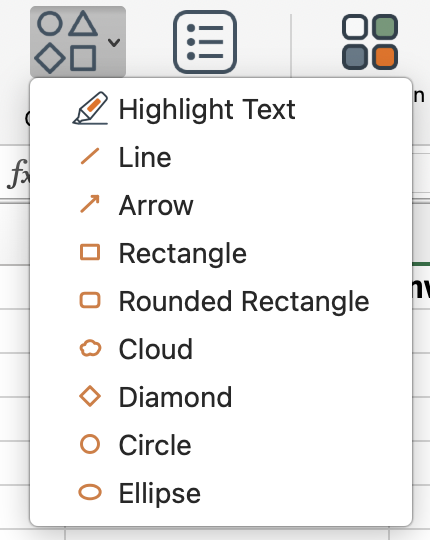
- Highlight text: mark words, clauses, or values that need attention.
- Arrow: point directly to a specific item on the page.
- Rounded rectangle: outline a region with softer corners.
- Cloud: call out an area that needs discussion or review.
- Diamond: mark a decision point, exception, or key item.
- Circle and ellipse: emphasize small details, numbers, or visual regions.
How It Works
- Open the target PDF in the viewer.
- Choose the commenting or drawing tool that matches the markup you want to add.
- Draw or place the annotation on the document.
- Select the annotation and add a comment, if required, using the Callout button that appears next to it.
- Move the comment text to the desired location on the page.
What To Keep In Mind
- These tools are saved as annotations and can be used in comment workflows.
- If a group is selected, new annotations use that group style for easier visual organization.
- Use the shape that makes the review intent clearest: arrows for direction, highlights for text, and enclosed shapes for regions.
- To remove a markup, select it in the viewer, then press the Delete button (the bin icon).